Multimeter, Live Meters For Anything In The Mac Menu Bar
Jake MarshIn this post
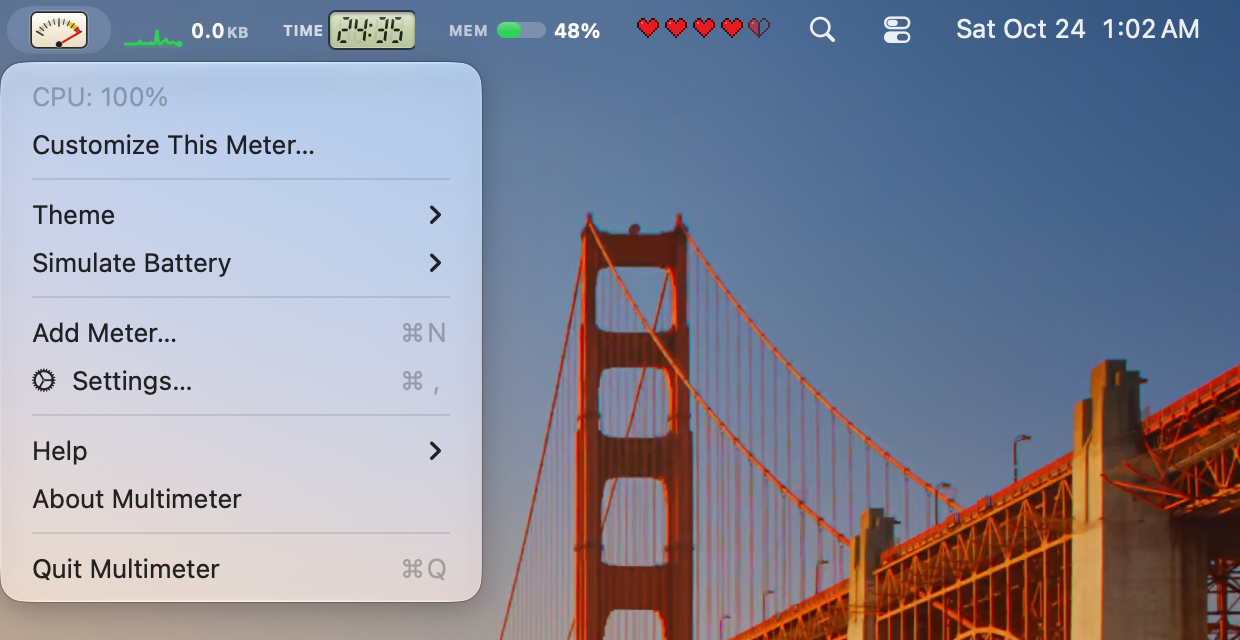
Right now, in the top right corner of my Mac, there’s a little cream-colored panel meter with a needle bouncing along with my CPU. Next to it a green sparkline traces my network traffic, an LCD readout counts down a 25 minute timer, a bar shows how much memory is in use, and a row of pixel hearts drains as my battery does. When the CPU gets busy, the needle swings into the red zone and I notice from across the room.
That’s Multimeter, my new Mac menu bar app, and it’s out now. It puts live meters in your menu bar for anything you want to keep an eye on: your Mac’s battery and your keyboard’s, power draw in watts, CPU, memory, disk, network speed, timers and countdowns, and numbers of your own that you send it from a script, a web address or a file. Every meter can look however you like, and if none of the 35 built-in looks is right, you can build your own.
It’s $19.99, once. You can read all about it at multimeterapp.com, or buy it directly and have it running in a minute.
Why I Made It#
Multimeter has been with me for a long time. I’ve been working on it a little here and there since around 2017, coming back to it between other projects, and it’s finally ready.
A bench multimeter is one of my favorite tools. You clip it onto whatever you’re curious about, and it tells you what’s going on right now in a way you can read at a glance. I wanted that for my Mac. I check the same handful of things all day: is the build pegging the CPU, how fast is this download going, how long is left on my timer, how many deploys went out today. The menu bar is the one place I’m always looking, so that’s where they should live.
Most menu bar monitors give you numbers in a fixed style, or charts that are nice but always look the same. I wanted each reading to have its own personality, the way the meters on old hi-fi gear and lab equipment did. A needle for CPU, because a needle is great at showing something that jumps around. An LCD readout for a timer. Hearts for the battery, because it’s funny and it works.
So in Multimeter, every meter is two things you pick separately: a source, which is what it measures, and a face, which is how it looks. Nearly every face works with every source, which turns out to be a lot of combinations.
Sixteen Sources#
Sources come in five groups, and adding a meter starts with choosing one.
Power covers your Mac’s battery (charge, charging state and time left), the battery in a Bluetooth keyboard, mouse or trackpad, and power draw: how many watts your Mac is using right now.
System has CPU across all cores, memory in use, how full a disk is, thermal pressure (whether macOS is slowing things down to stay cool), and fan speed.
Network shows download or upload speed.
Time has a timer you start and pause from the menu bar, a countdown to a date you pick, and time progress: how much of the day, week, month or year has gone by. A year progress meter is a surprisingly good motivator in October.
Your Data is the fun group: a value you send with a multimeter:// link, a number from a web address (plain or JSON), a number from a file, and the number a shell command prints on a schedule. More on those below.
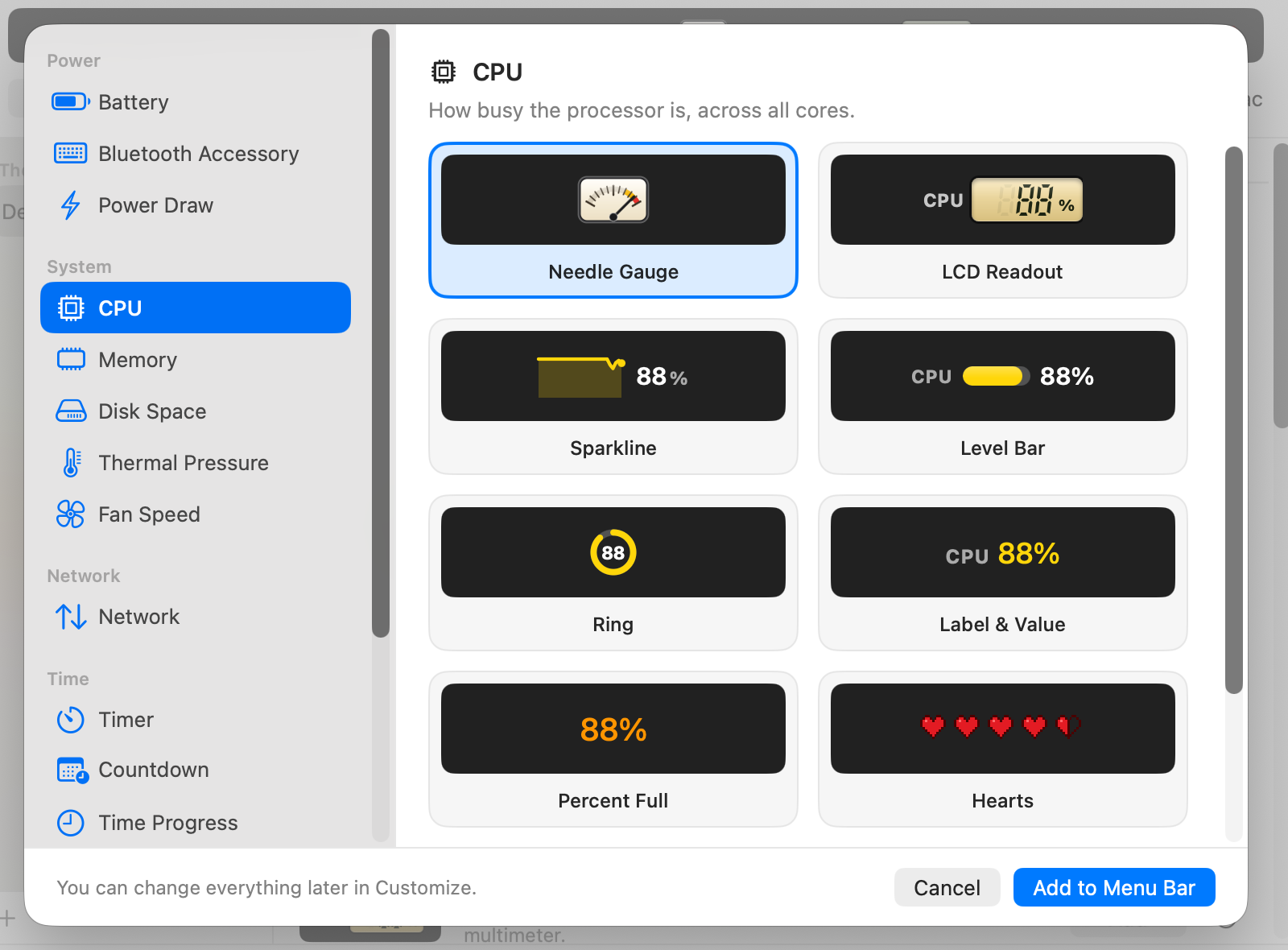
Press Command-N and the Add Meter sheet opens. Pick a source on the left and the right side fills with every face that can draw it, each one live with your real reading, so you can see exactly what you’ll get.
35 Faces#
The built-in faces cover a lot of ground. There’s the Needle Gauge, a little analog panel meter with a springy needle, and an LCD Readout with seven-segment digits on a backlit display, like a bench multimeter. Sparkline draws a live graph of the last couple of minutes next to the value. Level Bar, Ring and Label & Value are the quieter ones. Percent Full, Classic Battery Glyph, Segmented Battery and Time Until are made for particular sources, mostly the battery. And then there are the playful ones: Hearts, a row of five like a game’s health bar, Laser Sword, a glowing blade that shrinks as the value drops, and Book Power, five dots that light up as it fills.
Version 1.1 added 22 more: a Thermometer, Nixie Tubes, a Split-Flap display, a Fuel Gauge, an Oscilloscope, a Moon Phase, a Coffee Cup that empties, a Candle that burns down, a Plant, Tally Marks, an XP Bar, a Traffic Light and more, from quiet pills and underlines to arc gauges and heat strips.
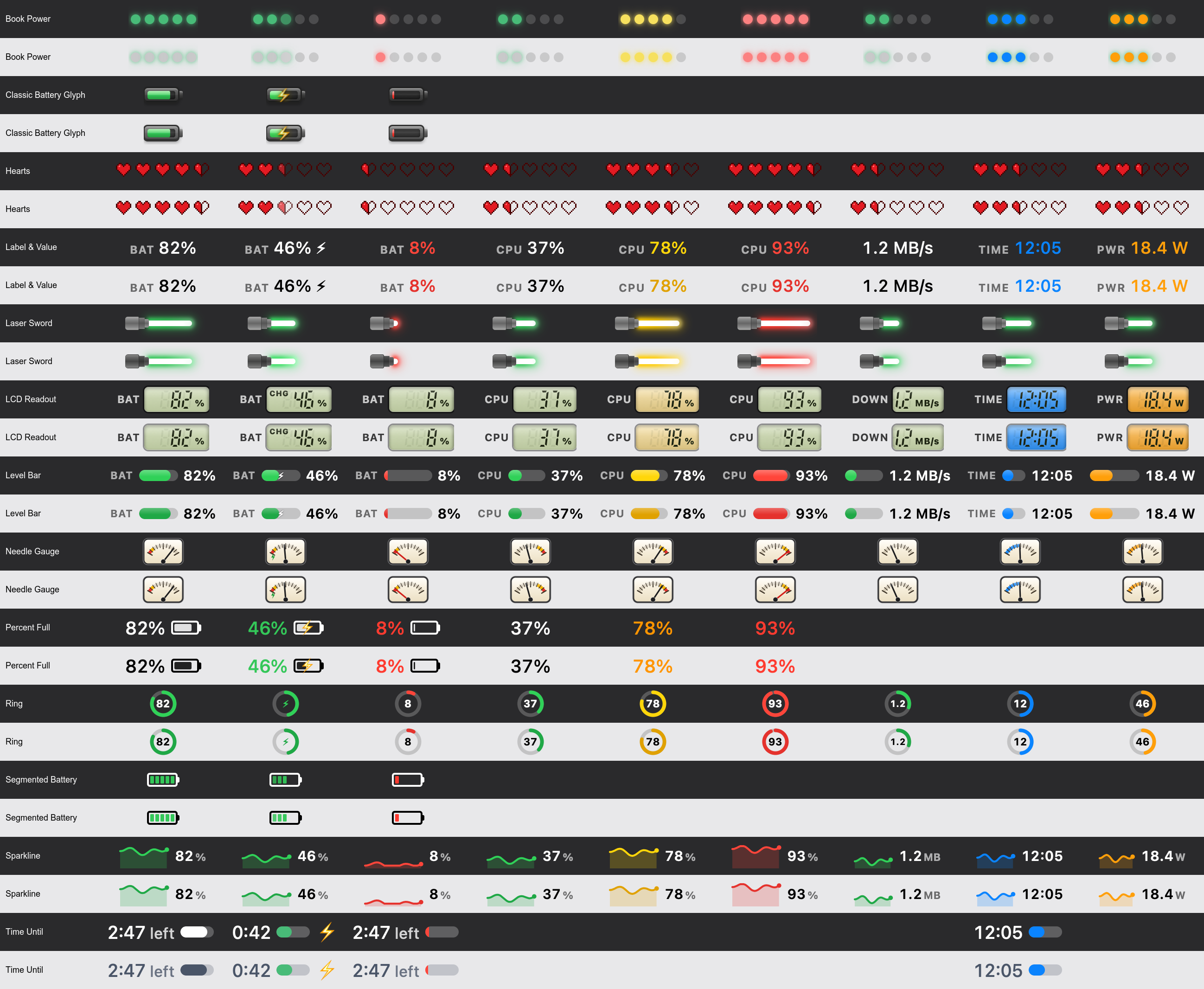
Every face is designed for both light and dark menu bars. The menu bar’s appearance depends on your wallpaper as much as the system setting, so each meter follows the menu bar it’s sitting in. The animated ones hold still when Reduce Motion is on.
Making It Yours#
Click any meter and choose Customize This Meter… to change everything about it. You can switch the face, rename or hide the label, pick a color, and drag its width. For sources with an open-ended range, like watts, network speed and your own numbers, you can set a minimum and maximum, or let it scale to the recent peak. The scale sits a bit above the highest recent value and never drops below a sensible floor, so an idle connection doesn’t fill the whole meter.
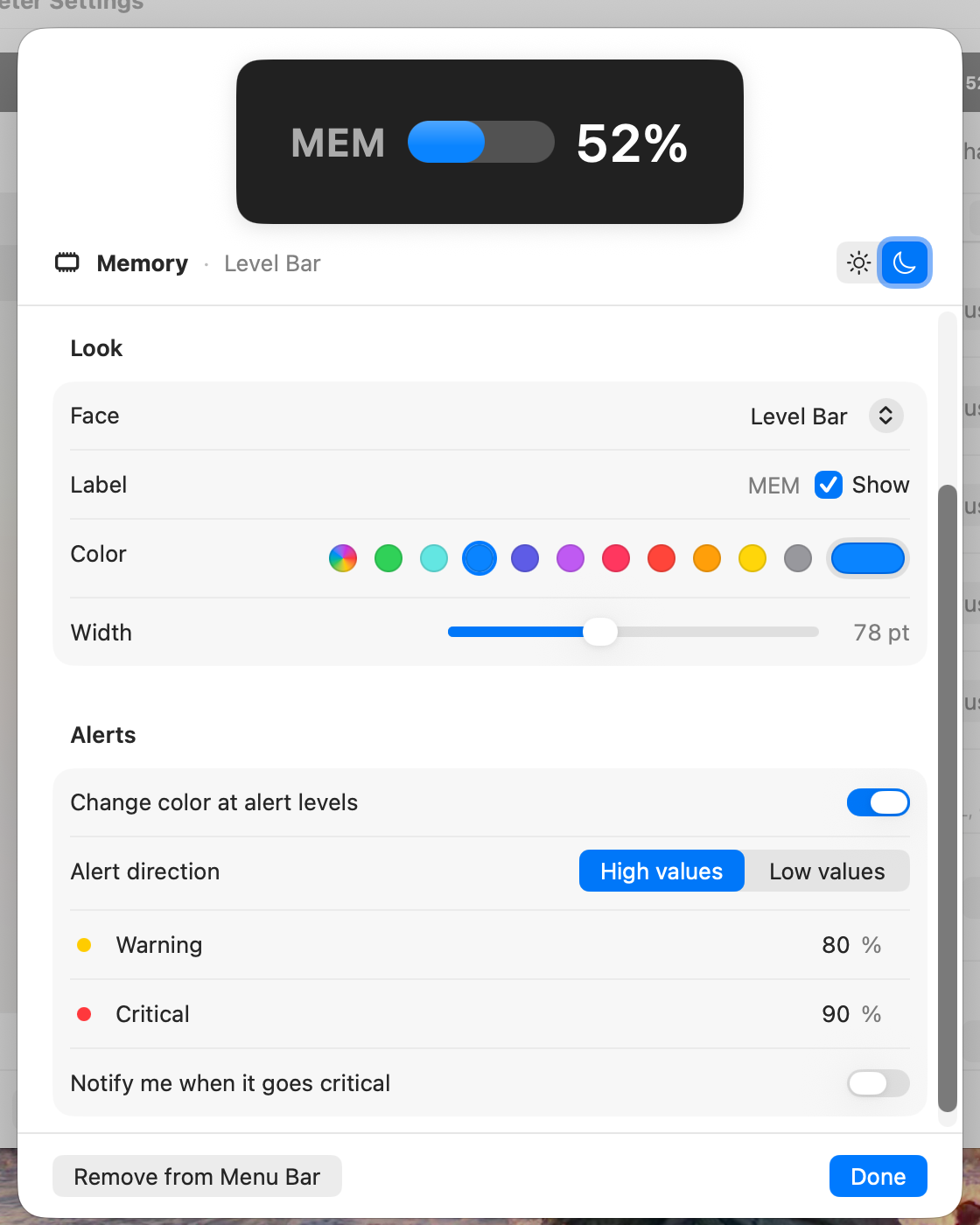
Each meter can also have a warning level and a critical level. They come with sensible defaults: the battery warns below 20% and goes critical below 10%, CPU at 70% and 90%, disk at 85% and 95%. You can change them, flip the direction, or turn them off. The face changes color as the meter crosses them, which is how my needle ends up in the red.
If you want more than color, turn on “Notify me when it goes critical” and you’ll get a notification when it crosses into critical, at most once every 15 minutes per meter so a value hovering at the line doesn’t spam you. Timers notify you when they finish, and they keep counting through a relaunch.
Then there are themes. A theme is a saved set of meters, and you switch between them from any meter’s menu. Multimeter comes with a few to start: Default, Working (a timer, a CPU sparkline and your battery’s time left) and Movie Time, which is just a laser sword for your battery. You might want one for heavy builds and another with a single meter for when you’d like a quiet menu bar.
Your Own Numbers#
This is the part I use the most. The Your Data sources put any number you can get your hands on into the menu bar, with the same faces, colors and alerts as everything else.
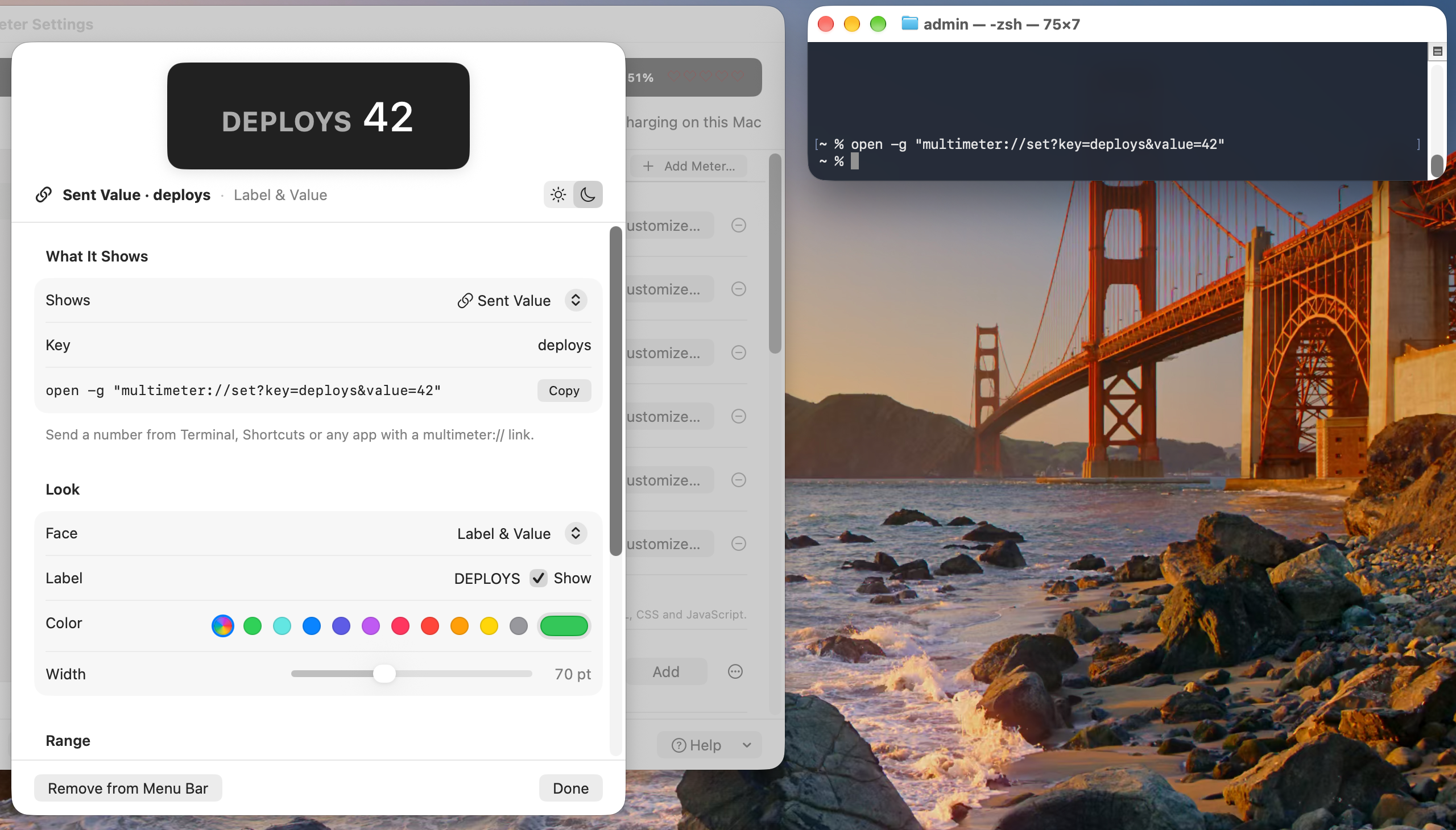
The simplest is a sent value. Give a meter a key, like deploys, and then anything that can open a URL can update it:
open -g "multimeter://set?key=deploys&value=42"The -g keeps everything in the background, and Multimeter handles the link silently without opening a window. The link can also carry a range, a label, a unit and your own text:
open -g "multimeter://set?key=coffee&value=3&min=0&max=5&label=Coffee&unit=cups"That makes it easy to report progress from a script. Here’s a build script that fills a meter as it works through its targets:
targets=(core ui docs site)
n=0
for t in "${targets[@]}"; do
  make "$t"
  n=$((n + 1))
  open -g "multimeter://set?key=build&value=$n&max=${#targets[@]}&label=BUILD"
done
Put that on a Level Bar or a Ring and you can watch the build fill up while you do something else. Terminal, Shortcuts, Raycast, a git hook, a job running on the same Mac: if it can open a link, it can drive a meter.
A web address meter fetches a URL on a schedule you choose and reads a number from the response. If the response is JSON, a key path picks out the value, walking through objects and arrays:
{"data": {"count": 17}}           → key path data.count
{"items": [{"value": 9.5}]}       → key path items.0.value
That covers a lot: an open issue count from an API, a queue length from your own status endpoint, a price, a sensor in your house. If the server starts failing, the meter says so instead of showing a stale number.
A file meter reads a number from a file and updates whenever the file changes. It watches the file itself, so a change shows up right away, and it keeps following the file when an editor or script replaces it with a new one, which is how most tools save.
A script meter runs a shell command on a schedule and shows the number it prints. It runs your command with zsh, with Homebrew’s paths included, and gives up after 10 seconds. Here’s one I like, the number of pull requests waiting on my review:
gh pr list --search "review-requested:@me" --json number --jq lengthAll four of these read the same formats. A plain number works, like 42, 42.5 or 1,234. So does JSON, either a bare number or an object that brings its own range and text along:
{"value": 42, "min": 0, "max": 100, "label": "Deploys", "formatted": "42 left"}There’s a Refresh Now item in the meter’s menu for when you don’t want to wait for the next check. The Creating Meters guide has every format and parameter, with more examples.
Designing Your Own Face#
A face is a small folder you can open in any editor: a little HTML, CSS and JavaScript plus a manifest. If you can write a bit of CSS you can design one, with gradients, SVG, canvas and custom fonts all there to use.
In Settings, choose Create Face… (Option-Command-N) and Multimeter makes you a working starter face and shows its folder in Finder. Open it in any editor. A face’s manifest.json gives it a name, a width and the sources it’s made for:
{
  "name": "Bar Graph",
  "description": "The last few readings as little bars.",
  "version": "1.0.0",
  "author": "Jake Marsh",
  "apiVersion": 2,
  "sources": ["any"],
  "defaultSource": "cpu",
  "width": 60,
  "supportsLightMode": true,
  "supportsDarkMode": true
}
The app does the hard parts before the data reaches your face. It reads the source, applies the meter’s range, works out whether it’s in a warning or critical state, and formats the reading for the person’s language and region. Your face gets all of that in window.meterData and a meterUpdate event whenever it changes. Here’s the JavaScript for a small face that draws recent readings as bars (its index.html is just a #bars element and a #value element, plus a few lines of CSS):
const bars = document.getElementById('bars');
const text = document.getElementById('value');

function render(data) {
  // history holds up to 60 recent levels, already scaled from 0 to 1
  const levels = data.history.length ? data.history.slice(-10) : [data.level];
  bars.replaceChildren(...levels.map((level) => {
    const bar = document.createElement('i');
    bar.style.height = `${Math.max(1, Math.round(level * 14))}px`;
    return bar;
  }));
  text.textContent = data.available ? data.formatted : '';
  document.body.dataset.state = data.state;  // normal, warning or critical
  if (data.tint) document.body.style.setProperty('--accent', data.tint);
  else document.body.style.removeProperty('--accent');
}

window.addEventListener('meterUpdate', (e) => render(e.detail));
if (window.meterData) render(window.meterData);
window.meterReady = true;
The face never needs to know what it’s measuring. It draws level, a number from 0 to 1, and shows formatted, which is already “23%” or “1.2 MB/s” or “4:12”, and that’s enough to work with CPU, a timer or a number from your CI. There’s more in there when you want it: the raw value and its range, the alert levels on the same 0 to 1 scale so you can paint a red zone on a dial, the light or dark menu bar, Reduce Motion, and the Mac’s battery, which every face can always see so any meter can show a charging bolt.
The data a face receives is a versioned API. Faces declare the version they were written for in their manifest, and the app keeps sending the older battery fields alongside the newer ones, so a face written against the first version keeps working with every source.
Try your face on different sources from Add Meter… and Customize, then share it. A face is just a folder, so zip it, rename it to .multimeter, and anyone can add it by double-clicking it or with Import… (Command-O). You can submit it to the gallery too. The Meter Gallery shows every built-in face running live, and it’s where faces from other people show up after a quick review. The Creating Meters guide documents every field, with complete example faces you can copy.
How It Stays Light#
An app that sits in your menu bar all day and updates every few seconds has to be careful with energy, and this is where I spent a lot of my time. A few decisions do most of the work.
Every source is read once. All readings go through a central metrics hub. Each distinct source becomes one feed, and every meter showing that source subscribes to it. Two meters showing CPU, say a needle and a sparkline, share one CPU sampler. Feeds are reference counted, so a source is only read while at least one meter is showing it, and it stops the moment the last one goes away.
Nothing polls that doesn’t have to. Thermal pressure, the battery and sent values are all event driven: they cost nothing until something changes. File meters watch the file. The sources that do need sampling each run at their own pace: CPU and network every 3 seconds, memory every 5, disk and Bluetooth batteries once a minute. A countdown checks every second during its last hour, every 15 seconds in its last day, and once a minute before that, matching how often its text can change. A paused timer checks in once an hour.
Wakeups are cheap and get batched. Every sampling timer is a one-shot timer with generous tolerance, so macOS can line Multimeter’s wakeups up with everything else’s instead of waking the CPU just for us.
It slows down when power matters. On battery, the live system sources sample half as often. In Low Power Mode, they slow to 2.5 times their normal interval. And when your displays sleep, every feed stops until they wake.
Faces only hear about real changes. After a new reading comes in, the app builds the face’s data and compares it with what it sent last time. If nothing a face can see has changed, nothing is sent and the face doesn’t redraw.
Motion runs at 30 frames a second. Smooth animation turns out to be expensive in a status item: while it runs, the meter redraws at the display’s full refresh rate, 120 frames a second on a ProMotion screen. A CPU needle animated that way used 7.5% CPU, and the same needle without the animation used 0.6%. So the built-in Needle Gauge, Level Bar and Ring step their motion with a small 30 fps tween instead, and the needle still looks springy.
Put together, a battery meter on its own uses 0.03% CPU, and the five meters in the screenshot at the top of this post (a CPU needle, a network sparkline, a timer, memory and the battery’s hearts) came in between 2.4% and 3.4% for the app and everything it runs, measured on a Mac that was busy with plenty of other work.
The Details#
Multimeter is a native Mac app. It runs on macOS 13 Ventura or later, on Apple silicon and Intel. It lives only in the menu bar, with no Dock icon. It’s in 14 languages: English, Spanish, French, German, Portuguese, Japanese, Korean, Chinese, Arabic, Hindi, Polish, Indonesian, Serbian and Ukrainian, and every number a face shows is already formatted for your region. It doesn’t collect any analytics.
Every meter is accessible too. VoiceOver reads each one as a plain summary like “CPU: 23%”, and the same summary is the tooltip when you hover over it.
If you’re on a Mac with a fan, the fan speed source reads it straight from the hardware. Multimeter is also coming soon to the Mac App Store.
Get It#
Multimeter is $19.99, once. No subscription, no account. Buy it at multimeterapp.com/get-the-app, and the download starts right away. Payment goes through Stripe, with Apple Pay, Google Pay or a card. The app is signed and notarized, it updates itself through Sparkle, and your purchase includes every update to version 1.
There’s a lot more at multimeterapp.com, including live demos of every face, a getting started guide and guides for specific setups. If you build a face, I’d love to see it in the gallery.