Refrain, A Snippets App For The Mac
Jake MarshIn this post
I type a lot of the same things over and over. My mailing address, a “thanks, got it, I’ll take a look” reply for support email, the git command I can never remember for undoing the last commit, a meeting link, a prompt I like for proofreading. For years those lived in a mix of Notes, old emails I’d search for and my own memory.
So I made Refrain. It’s a small Mac menu bar app for any text you reuse, and it’s out today at refrainformac.com. A refrain is something you repeat, which felt right.
How It Works#
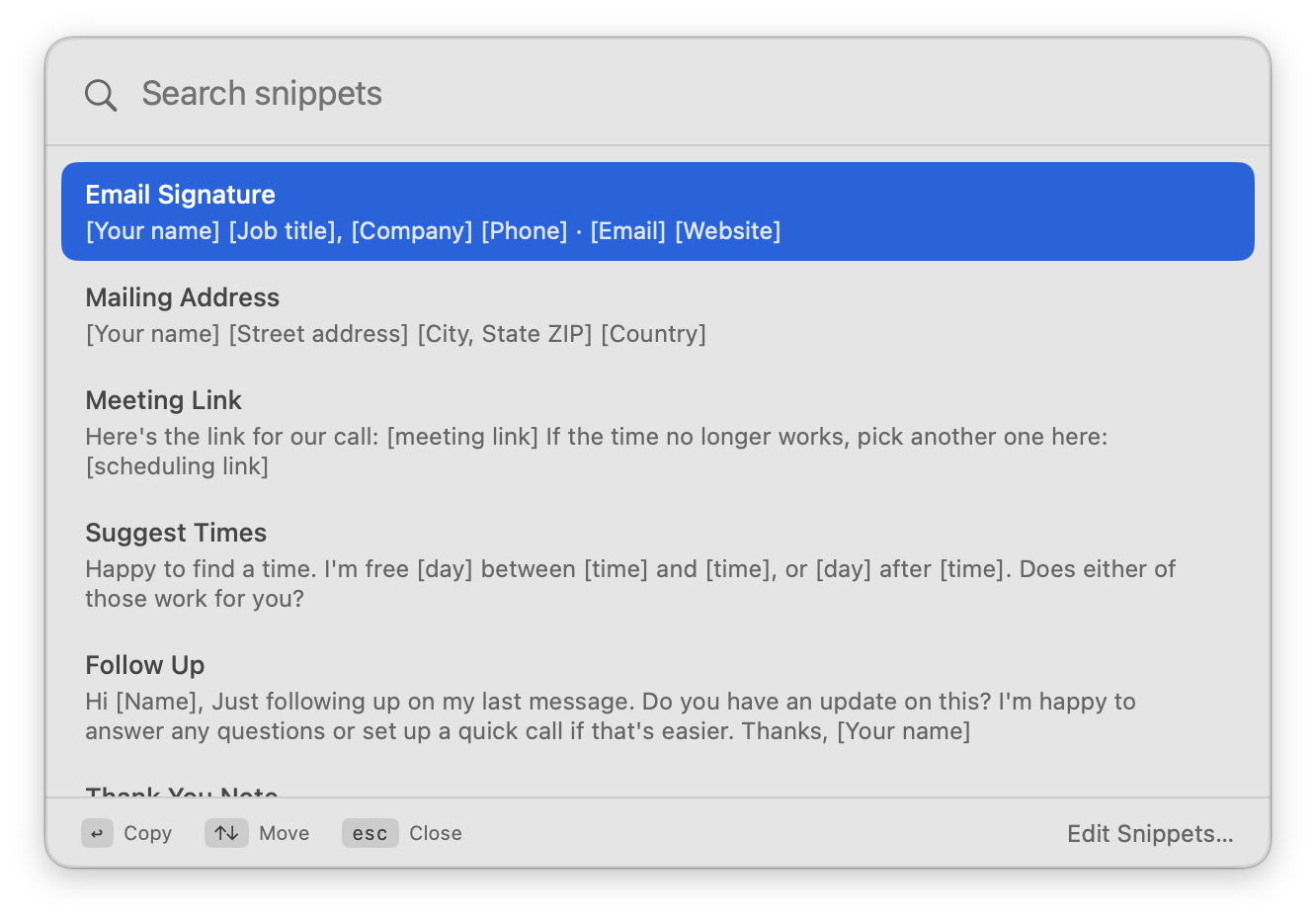
Press Control-Option-Space from anywhere and a search palette pops up in the middle of your screen. Type a few letters, use the arrow keys if you need to, and press Return. The snippet is on your clipboard and the palette is gone, so you just press Command-V wherever you were.
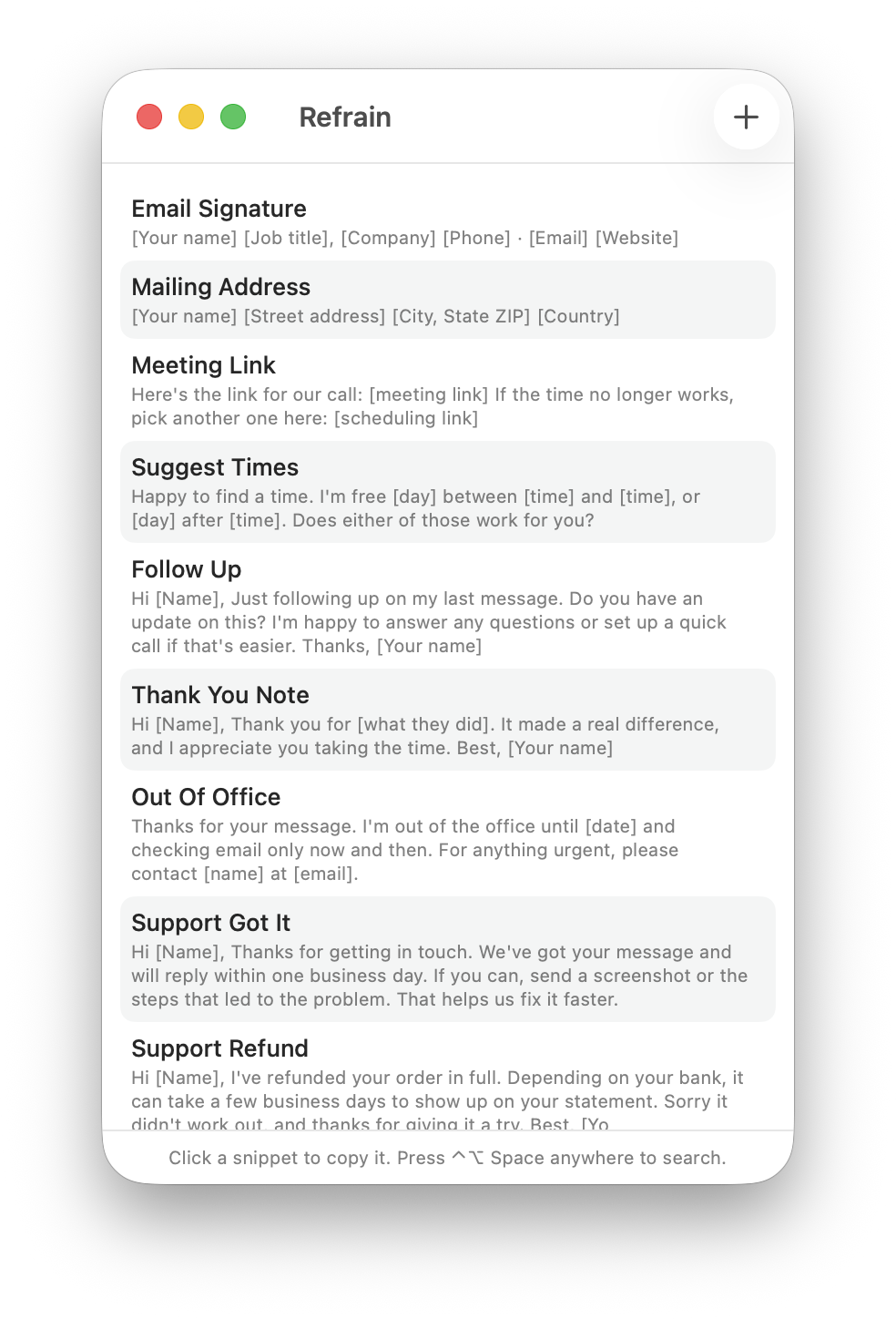
If you’d rather click, the menu bar icon lists every snippet too, and clicking one copies it. There’s also an editor window where you can add, edit, duplicate, delete and drag snippets into whatever order you like.
The palette is an NSPanel with the .nonactivatingPanel style. That detail matters more than anything else in the app. A non-activating panel can take keyboard input without making Refrain the active app, so whatever you were typing in stays frontmost the whole time. When the panel closes, your cursor is right where you left it and Command-V goes to the right place. It also joins every Space and shows up over full screen apps, and it opens on whichever screen your mouse is on.
Search That Does What You Mean#
The filter is small, but I spent some time on it. Every word you type has to show up somewhere in the snippet’s name or its text, ignoring case and accents. Then results are ranked into three groups: names that start with what you typed, names that contain every word, and snippets where the match is only in the body text.
let rank: Int
if title.hasPrefix(normalizedQuery) || name.hasPrefix(normalizedQuery.replacingOccurrences(of: " ", with: "-")) {
    rank = 0
} else if words.allSatisfy(inTitle) {
    rank = 1
} else {
    rank = 2
}
Within each group, snippets keep the order you gave them in the file. So if you put your most used ones at the top, they win ties. In practice I type two or three letters and the one I want is already highlighted.
The palette also waits for input methods to finish. If you’re typing Japanese, Chinese or Korean and still composing a word, Return and the arrow keys go to the input method first instead of copying something by accident.
Your Snippets Are One Plain Text File#
I didn’t want my snippets locked inside an app’s database. Refrain keeps them in one markdown file that you pick on first launch (or it suggests ~/Documents/refrain-snippets.md). Each snippet is a little block with a name, separated by a line of four dashes:
---
name: support-got-it
---

Hi [Name], Thanks for getting in touch. We've got your message and will
reply within one business day.

----

---
name: git-undo-last-commit
---

git reset --soft HEAD~1
The kebab-case names turn into titles in the app, so support-got-it shows up as “Support Got It”. Because it’s just a file, you can keep it in iCloud Drive or Dropbox, put it in a git repo, or open it in your favorite editor and rearrange things by hand. The parser normalizes Windows-style line endings too, in case the file has been somewhere else first.
Refrain watches the file and reloads it when something else changes it. The trick there is that most editors don’t write into the existing file when you save. They write a new file and swap it into place, which means a plain file watcher ends up watching a file that no longer exists. Refrain listens for rename and delete events as well as writes, and when one of those comes in it waits a moment, reloads and starts watching the new file:
if events.contains(.rename) || events.contains(.delete) {
    // Most editors save by replacing the file. Re-attach to the new
    // inode once it exists, then reload.
    DispatchQueue.main.asyncAfter(deadline: .now() + 0.15) {
        self.loadFromDisk()
        self.startWatching()
    }
} else {
    self.loadFromDisk()
}
If you move the file somewhere else from Settings, Refrain moves it for you and points at the new spot.
No Accessibility Permission#
A lot of Mac utilities that react to a global shortcut ask for Accessibility access, which means a trip into System Settings before the app does anything. Refrain doesn’t. It registers its shortcut with Carbon’s RegisterEventHotKey, which is still the most reliable way to get a system-wide hotkey on the Mac and needs no permission at all. You can pick from a few shortcut presets in Settings, or turn it off and live in the menu bar.
And since Refrain copies to the clipboard instead of typing into other apps for you, it never needs to control your Mac. You paste, which is something you already know how to do.
Starter Snippets, In 14 Languages#
An empty snippets app is hard to picture using, so a new file starts with 13 examples: an email signature, a mailing address, a meeting link, a few email replies, a couple of support answers, a meeting notes template, that git command, and two AI prompts for summarizing and proofreading. They have placeholders in square brackets, so you can fill in your own details and keep the ones you like.
The app and its starter snippets are localized into 14 languages. The translations live in one JSON file per language, and a small Bun script turns them into the String Catalog Xcode reads. It fails the build on missing keys, mismatched format specifiers, and three dots where there should be a real ellipsis character.
Get It#
Refrain runs on macOS 14 Sonoma and later. You can grab it at refrainformac.com, and it updates itself with Sparkle. If you end up with a snippet you can’t live without, I’d love to hear what it is.